AI Studio pods
A pod is the unit of work, team and billing in 4Geeks AI Studio. It has a goal, a playbook, a repository, connected tools, a plan, tasks, a wallet and a human pod lead. This page shows how to create one, what each part does and how to get the most out of it.
In summary
For: anyone creating or supervising an AI Studio pod.
Time: 10 minutes to read; 5–10 minutes to create the first pod.
Result: a pod working on your repository with a plan you approved.
What is a pod?
A pod is a self-contained delivery environment:
| Part | What it does |
|---|---|
| Goal | The outcome you asked for, written in business language. |
| Playbook | The kind of work: feature, bugfix, audit, QA, docs, upgrade, database migration or greenfield. |
| Repository | The GitLab or GitHub project the pod clones and works on. |
| Tools | Jira, Confluence, Notion or a read-only database, connected per pod. |
| Capabilities | What the pod can execute: docs, SCRUM, data, quality, E2E, security, design and preview. |
| Plan | The summary, approach, assumptions, risks, out-of-scope items and later phases. You approve it. |
| Tasks | The weighted work items with acceptance criteria, status, retries and merge requests. |
| Pod lead | The 4Geeks engineer who reviews the scope, answers questions and escalates blockers. |
| Wallet | The prepaid balance that covers work above the monthly plan. |
A pod is not a chat session. It keeps state, runs jobs, records evidence and pauses for the decisions that need a human.
Pod sizes and scope
The wizard estimates the size of the brief from what it contains. You never declare the size yourself.
| Size | Path | What you get |
|---|---|---|
| S | Wizard → pod | One small delivery, such as a bugfix or a single feature. |
| M | Wizard → pod | One complete flow with several tasks. |
| L | Wizard → one declared slice → pod | A product-sized brief split into phases. The pod delivers the first slice; later phases stay in the plan. |
| XL | Wizard → request for a program | No pod yet. A pod lead prepares phase 1, you approve it and the first pod is created. |
An L pod stores its out_of_scope list and its remaining phases in the plan, so everyone can see what this delivery does not include. An XL program is a commercial conversation with a pod lead, not an automatic pod.
Create a pod step by step
1. Open the wizard
In AI Studio, click New pod. The wizard has four steps: what you need, a few questions, the repository and the confirmation.
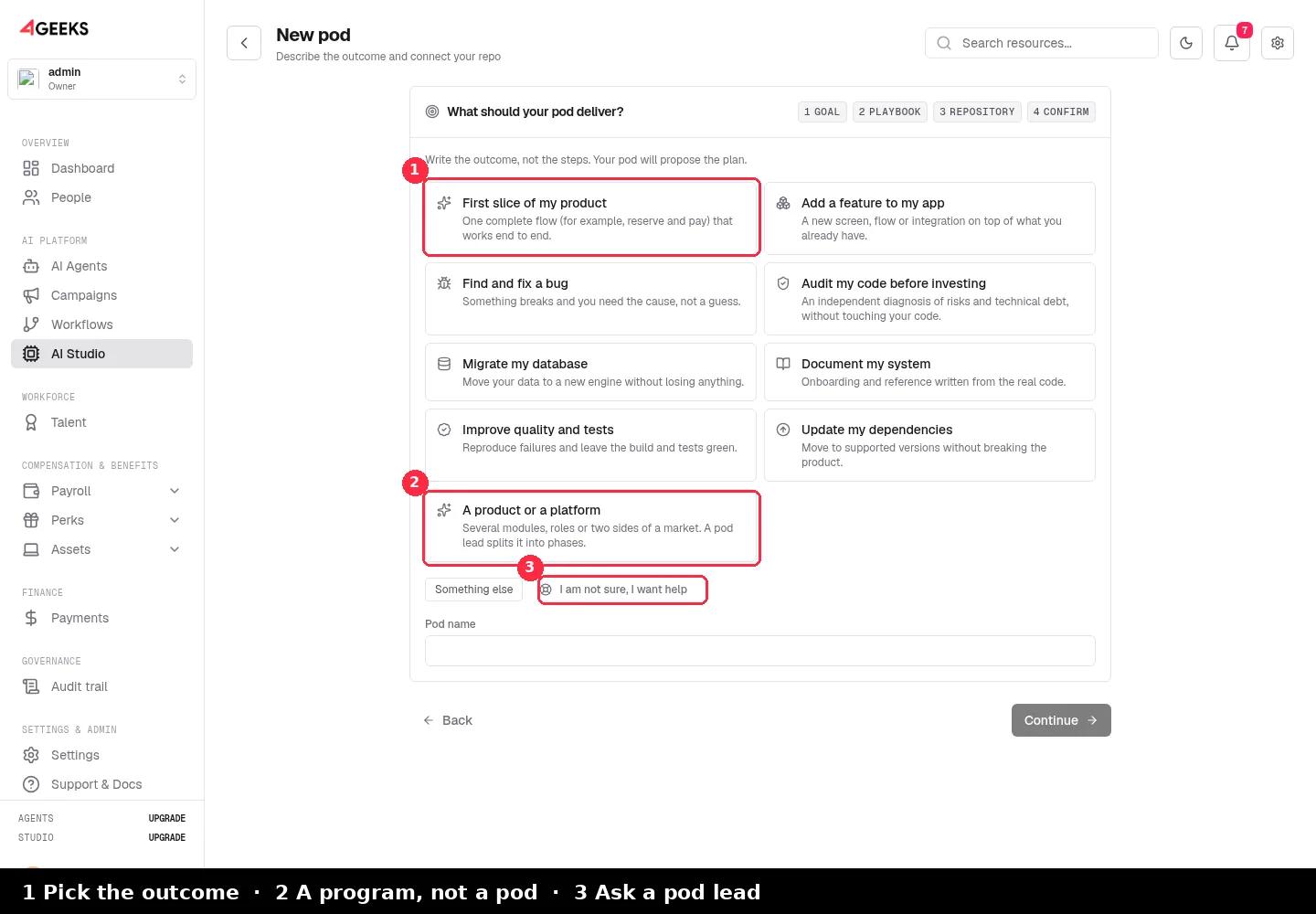
Choose the closest outcome:
- First slice of my product
- Add a feature to my app
- Find and fix a bug
- Audit my code before investing
- Migrate my database
- Document my system
- Improve quality and tests
- Update my dependencies
- A product or a platform
If none fits, choose Something else and describe the goal yourself. If you prefer a person, choose I am not sure, I want help.
2. Answer the intake
The intake is five questions in business language. Only the marked ones are required; the rest can stay blank.
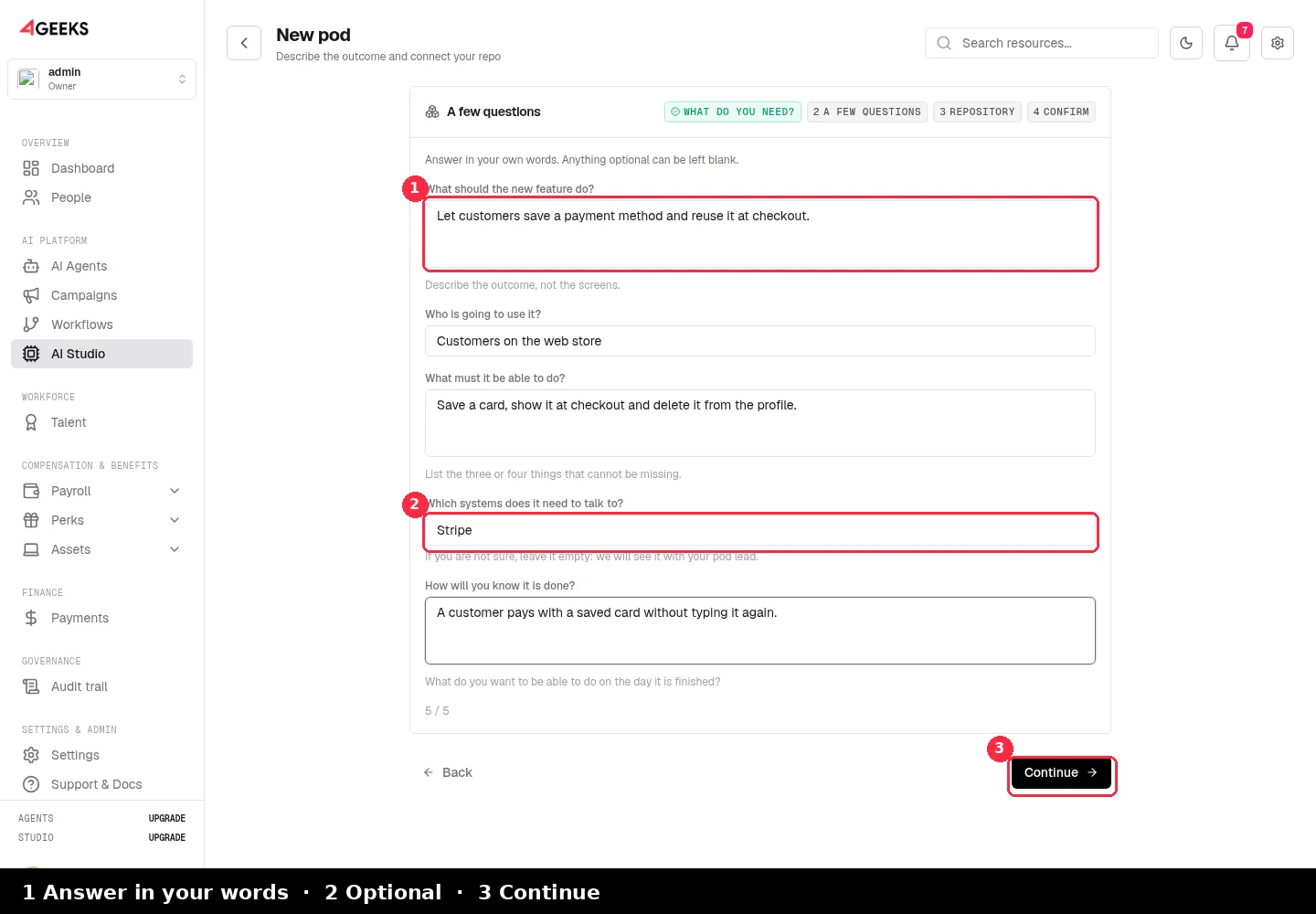
| Question | Why it matters |
|---|---|
| What should it do? | The outcome the plan will target. Describe the result, not the screens. |
| Who is going to use it? | The audience and the roles the plan must cover. |
| What must it be able to do? | The three or four things that cannot be missing. |
| Which systems does it need to talk to? | Optional. Integrations such as payments, email or an ERP. |
| How will you know it is done? | The acceptance test in your words. This becomes the definition of done. |
Your answers become the brief the pod lead reviews and the planner uses. The raw answers stay in the pod metadata; they are not pasted into every task prompt.
3. Connect the repository
A pod works on a branch and opens a merge request. It never pushes to your protected branch.
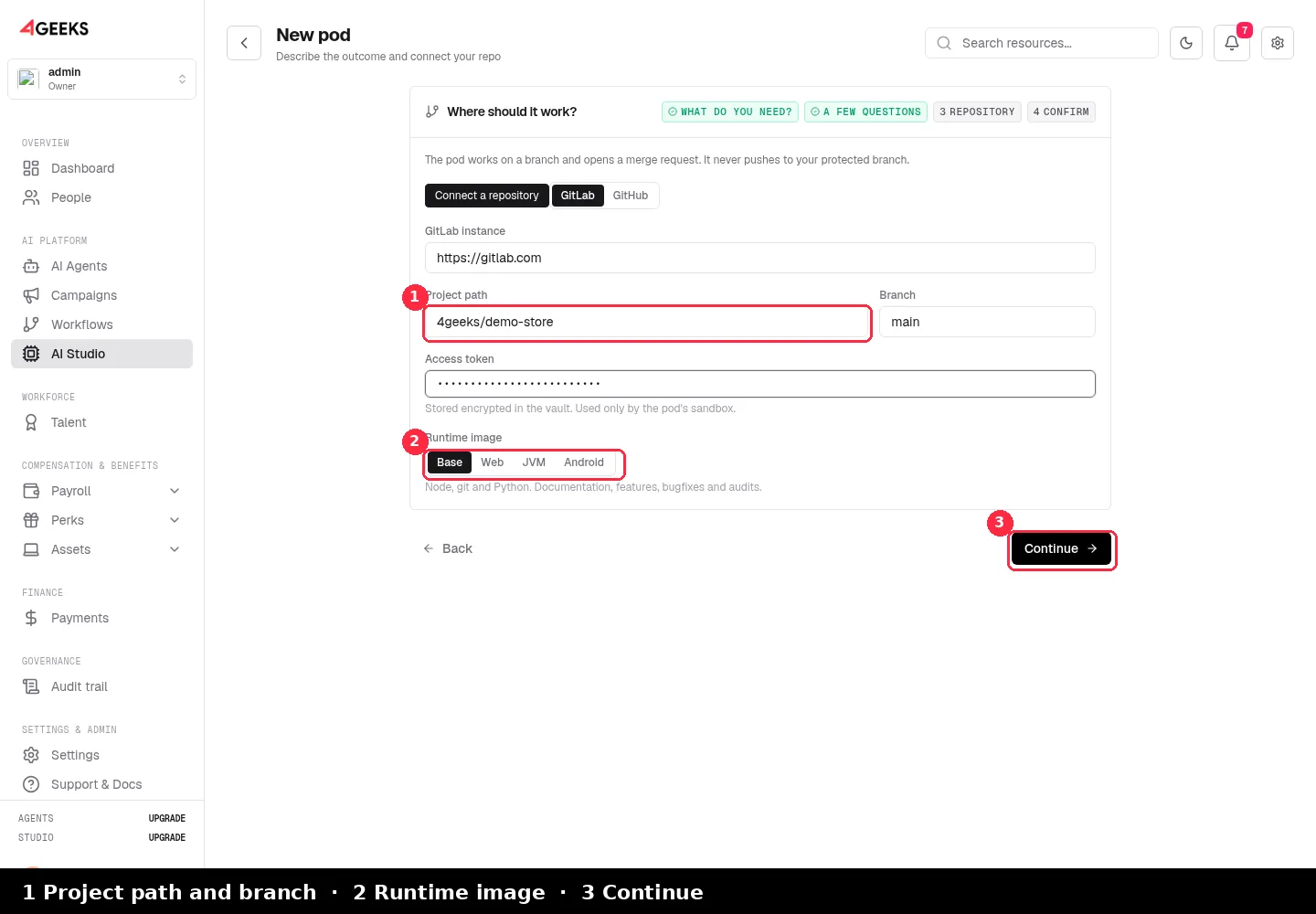
- Choose GitLab or GitHub.
- Enter the instance URL (for example
https://gitlab.com). - Enter the project path and the branch the pod should start from.
- Paste an access token with write access to that project. The token is stored encrypted in the vault and is used only by the pod’s sandbox.
- Pick the runtime image: Base, Web, JVM or Android. The wizard suggests one from the repository when it can inspect it.
4. Confirm the pod
The confirmation screen shows the size, the brief, the playbook, the repository, the runtime image, the capabilities, the tools, the available balance and the first estimate.
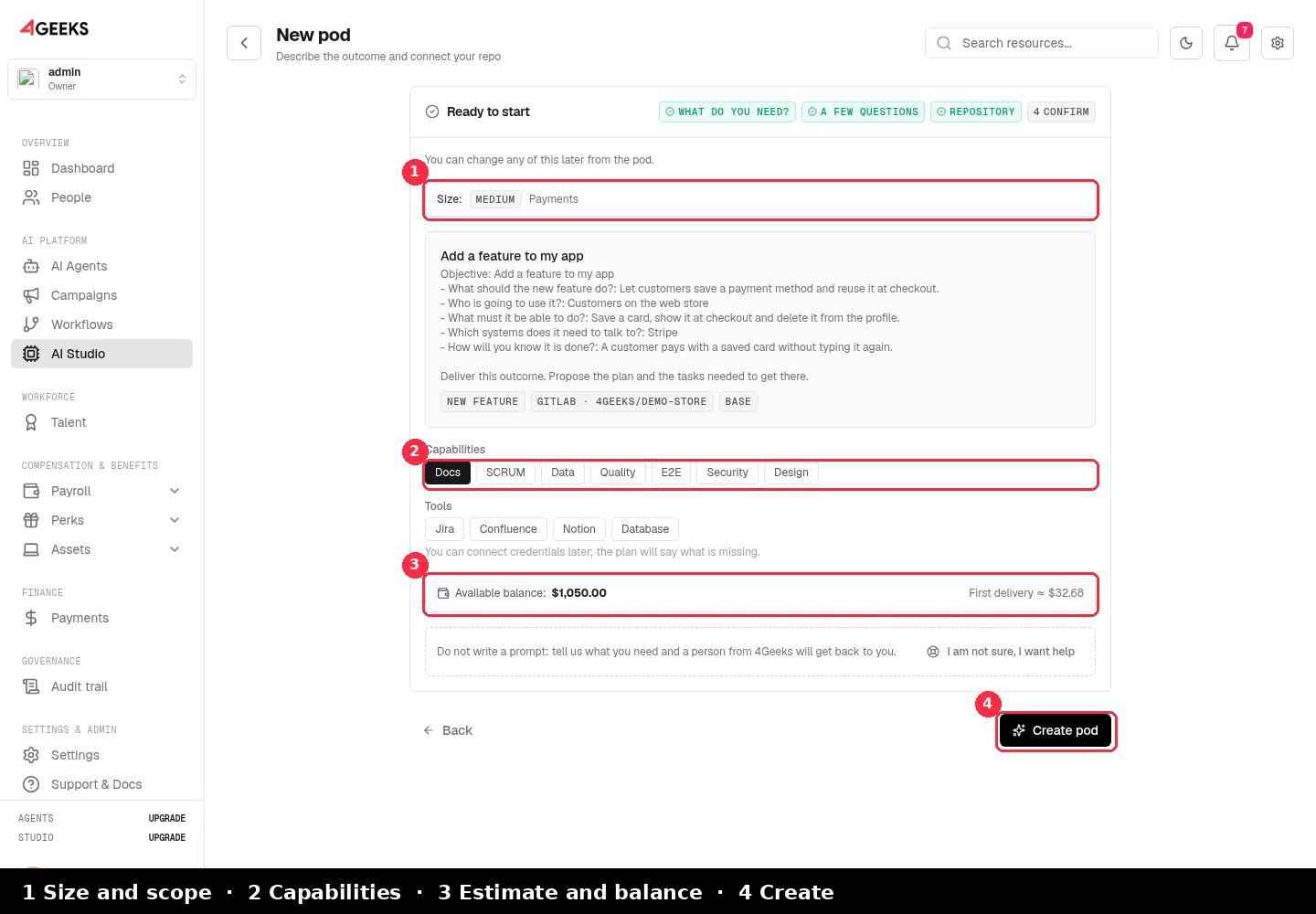
- Size and scope: S, M, L or XL. An L pod shows the first slice and the later phases.
- Capabilities: what the pod can execute. You can change them until the plan is approved.
- Tools: Jira, Confluence, Notion or a database. You can connect credentials later; the plan will say what is missing.
- Estimate: the first delivery estimate and the wallet balance. If the balance is low, top up before creating the pod.
- Create pod: starts provisioning. The pod appears in the list and the plan is generated next.
5. Approve the plan
When the plan is ready, the pod appears under Needs you. Open it and review:
- The summary and the approach.
- The tasks and their acceptance criteria.
- The assumptions and risks.
- What is not included in this delivery.
- The later phases for an L pod.
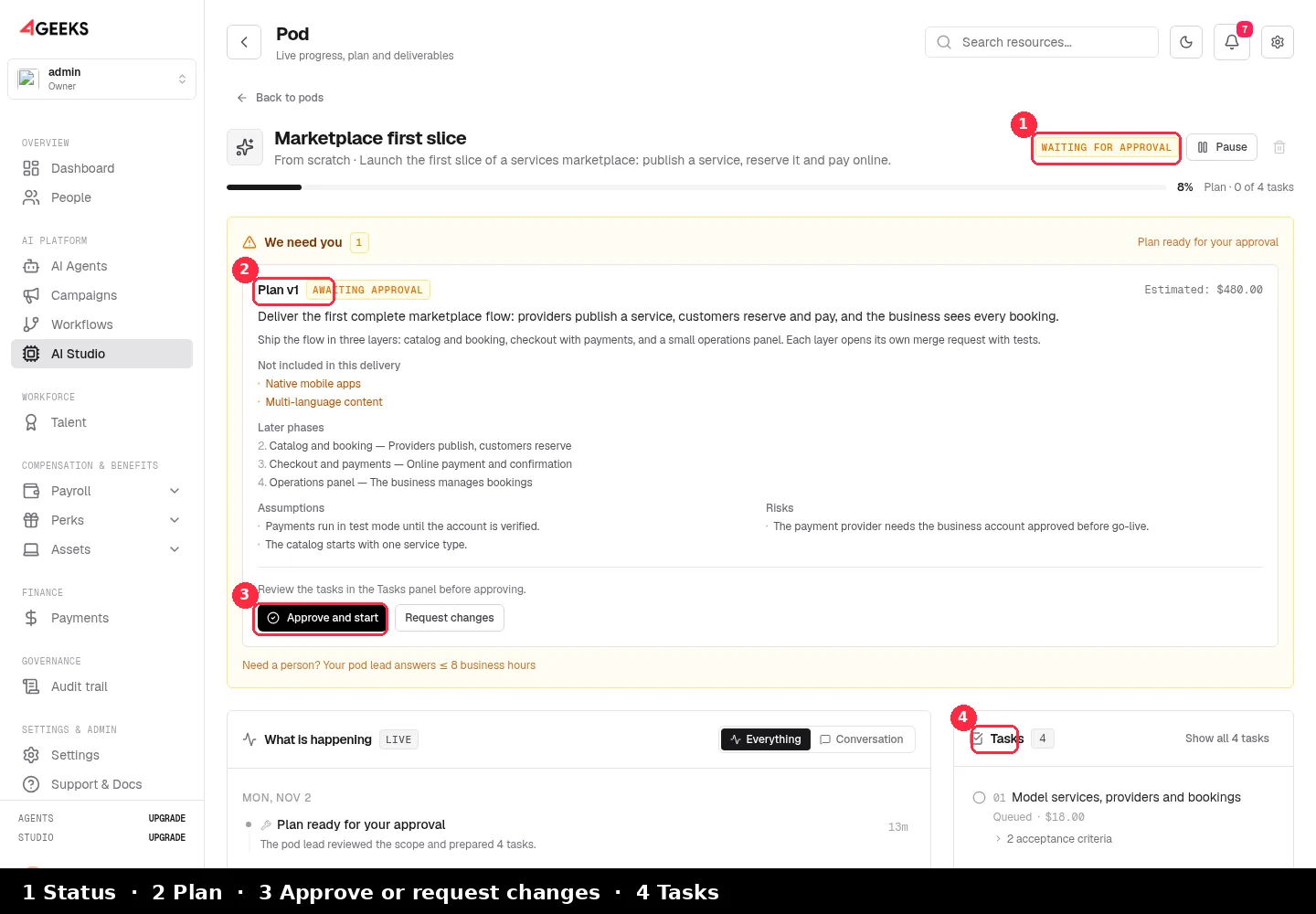
Click Approve and start to move the pod to building, or Request changes to send it back with feedback. The plan is approved in exactly one place: the approval row. Approving the plan is what starts the build.
6. Follow the build and review the merge request
The pod room is organised top-down:
| Zone | What it answers |
|---|---|
| Header | Entity, status and one progress line: phase plus completed tasks. |
| We need you | The single most important pending decision: plan, budget, tool permission or a question. |
| What is happening | The live timeline and the composer, with an Everything/Conversation filter. |
| Tasks | Failures first, then the task in flight and the next ones. |
| Pod details | The decided plan, team, wallet, deliverables and technical details. |
When the work is done, the pod opens a merge request with tests and evidence. Your team reviews and merges. The pod does not deploy to production.
The pod lead
Every pod has a human pod lead from 4Geeks. They are the accountable person behind the pod:
- They review the scope and the plan before you approve it.
- They answer questions in the pod room and by email.
- They unblock a stalled pod and decide when to escalate.
- They own the commercial conversation for an L or XL brief.
Time and billing: Starter includes 2 h of pod lead per month and Pro includes 6 h. Lite has pod lead on demand at $75/h. Minutes inside the plan are free; the excess is charged to the wallet at $75/h.
Ask for help: use Talk to my pod lead in the composer, or choose I am not sure, I want help in the wizard. A request for help needs:
- An active plan for the workspace.
- Pod lead minutes left in the current period (Lite has none included, so it is on demand).
- A card on file to guarantee the time.
A request for help is not a support ticket. It is a short intake that a pod lead reads before contacting you.
Capabilities
Capabilities define what a pod can actually execute. Each one turns on skills, toolchains, task kinds and expected artifacts. The plan is validated against them, so a capability is a commitment, not a badge.
| Capability | Turns on | Use it when |
|---|---|---|
| Docs | Documentation tasks and a document artifact | You need READMEs, ADRs, API references or onboarding material. |
| SCRUM | Story writing and issue sets | The deliverable is a backlog for Jira, Confluence or Notion. |
| Data | Read-only introspection, migration tasks and shadow validation | You are migrating a schema and need evidence before the cut-over. |
| Quality | QA: build, tests and browser checks. Review: the merge request and evidence you approve | Every feature, bugfix and upgrade should have it. |
| E2E | Playwright, Chromium and a browser test gate | A critical flow must be proven in a real browser. |
| Security | Security review and investigation | You need an audit or a risk report without code changes. |
| Design | Design intake and screenshot artifacts | A mockup or a written brief has to become UI work. |
| Preview | A temporary preview URL | You want to see the change before merging. Rollout-dependent. |
Capabilities can change before the plan is approved. Once the plan is approved they are locked, because the plan, the runtime image and the tasks were built around them. preview ships inactive until the preview gateway is configured for the workspace.
Quality is the capability behind Review and QA: the automatic checks that must pass before a pod can deliver, and the merge request with evidence that your team reviews before merging. See how Review and QA work.
Playbooks and runtime images
The playbook decides the default team, task kinds and output targets. You normally pick an outcome and the wizard chooses the playbook; you can change it in Advanced options.
| Playbook | Default capabilities | Typical output |
|---|---|---|
greenfield | Docs | A first working slice, tests and the code in your repo. |
feature | Docs | A feature, tests and a merge request. |
bugfix | Docs | A failing test, the fix and a regression test. |
docs | SCRUM | Documentation, ADRs and a published page or issue. |
scrum | Docs | Stories and an issue set. |
db-migration | Data | A schema map, reviewed DDL, a shadow run and a runbook. |
audit | Security | A prioritised report; the pod runs read-only. |
qa | Quality | Reproduced failures, wider coverage and a browser run when E2E is on. |
upgrade | Docs | The upgrade applied, breakage fixed and a changelog. |
A pod runs one image, chosen before its sandbox is created:
| Image | Adds | Use it for |
|---|---|---|
| Base | Node, git, Python, ripgrep and jq | Features, bugfixes, docs, audits, SCRUM. |
| Web | Chromium and Playwright | E2E, visual QA and preview. |
| JVM | JDK 17, Gradle and Maven | Java, Kotlin, Spring and Spark projects. |
| Android | Android SDK and build tools | Android builds. No emulator; instrumented tests need an external device farm. |
The image is immutable once the sandbox exists, so a project never changes toolchain mid-flight. If the capabilities need two images at once, the wizard warns you and installs one toolchain at runtime.
Pod lifecycle and pod room
stateDiagram-v2
    [*] --> draft
    draft --> provisioning
    provisioning --> planning
    planning --> awaiting_plan
    awaiting_plan --> building: plan approved
    building --> reviewing
    reviewing --> awaiting_review
    awaiting_review --> delivering
    delivering --> done
    building --> paused
    building --> blocked
building --> failed- Draft: created but not started.
- Provisioning / planning: the sandbox and the plan are being prepared.
- Awaiting plan: the plan is ready for your approval.
- Building / reviewing: the pod is executing tasks and running checks.
- Awaiting review: the merge request is ready for your team.
- Delivering / done: the deliverables are published and the pod is closed.
- Paused / blocked / failed: a decision or a failure stopped progress; the pod room explains why.
You can pause a pod when it is running, resume it, and delete it only when it is paused, done or failed. Deleting a pod removes its plan, tasks, timeline, messages, deliverables and sandbox; the repository, tools and billing history stay.
Quality gate and deliverables
A pod with Quality or E2E cannot be marked delivered without a green build and test run. The checks run the client’s own scripts in the sandbox and are stored with the pod. Browser E2E adds a Playwright run and a report.
- A failed check blocks delivery with
QUALITY_GATE_FAILED. - An approved waiver can accept a delivery without a green run, with a written reason and an audit entry.
- Deliverables include the merge request, documents, reports, migration artifacts, preview links and published pages.
- Editing an artifact marks its published copy as stale; the pod can update it in place instead of duplicating the page.
Best practices
- One outcome per pod. Split product-sized work into an L pod or a program.
- Write the definition of done in the intake. “A customer pays with a saved card” beats “improve checkout”.
- Connect the right branch. The pod starts from the branch you give it and opens its MR against it.
- Keep the quality gate on. Build and tests are the cheapest insurance against a bad merge.
- Review the plan, not just the tasks. Assumptions and out-of-scope items are where surprises hide.
- Answer “We need you” quickly. A pod paused on a decision is not making progress.
- Use the pod lead for scope and risk. They are included to keep the delivery honest.
- Attach references when design matters. A mockup plus a written brief is better than either alone.
- Top up before the wallet runs dry. A budget pause costs more time than a top-up.
- Archive finished pods. It keeps the list focused and frees a concurrency slot.
Troubleshooting
| Symptom | What to check |
|---|---|
| The pod is stuck in provisioning | The repository token may be invalid or the runtime image may be unavailable. Open Pod details and read the sandbox status. |
| The plan never arrives | Check that the workspace has an active plan and that the repository is reachable. The pod lead is notified when planning stalls. |
| “This pod cannot be created yet” | The eligibility panel lists the blocker: repository required, unsupported profile, preview not configured or a missing database connection. |
| A task failed | Open the task: the failure reason and the retry action are in the task rail. One failed attempt and one retry are free. |
| The quality gate blocks delivery | Run the build and tests again, fix the failure or request an audited waiver with a reason. |
| The pod lead has not answered | The pod header shows the SLA in business hours. Escalations appear in the operator queue. |
Frequently asked questions
Can I change capabilities after creating the pod?
Yes, until the plan is approved. After that they are locked because the plan, runtime image and tasks depend on them.
Can I use a repository I do not own?
You need an access token with write access to that repository. The pod works on a branch and opens a merge request; it does not need permission to push to a protected branch.
What happens if the brief is too big for one pod?
The wizard detects it. An L brief is delivered as one declared slice with later phases; an XL brief becomes a program with a pod lead and a phase 1 you approve first.
Does the pod run tests in my CI?
No. It runs your repository’s own build and test scripts inside its sandbox and records the result as evidence. Your CI still runs on the merge request.
Can I delete a pod?
Only when it is paused, done or failed. Deletion is irreversible for the pod’s plan, tasks, timeline and sandbox; the repository, tools and billing history are kept.
Next steps
- See the AI Studio use cases
- Understand usage, plans and the wallet
- Read the Private AI Gateway
- Browse the AI Studio FAQ
Still have questions? Ask on Discord or explore the tutorials.